
Before you start
- The automation editor only opens on a computer.
- The automation starts with an Instagram comment and your account has access to Instagram comment automations.
- Instagram only allows one private reply per comment, and only as text. Later messages are only sent after the person replies or taps a button or quick reply that continues the automation, and only within the next 24 hours. Tapping a button that opens a link is not enough.
Step by step
- 1
Open the automation in the editor
In Automations, select Open on the automation. If it is active, select Edit. From the Message people who comment assistant, you can also select Open in the editor, at the top. The canvas shows the Instagram comment starting point and the steps connected to it.
- 2
Set up the private reply
Select the Send message step connected to the comment. Under How to send, check Private reply and write the message. On the canvas, the step shows as First private message.
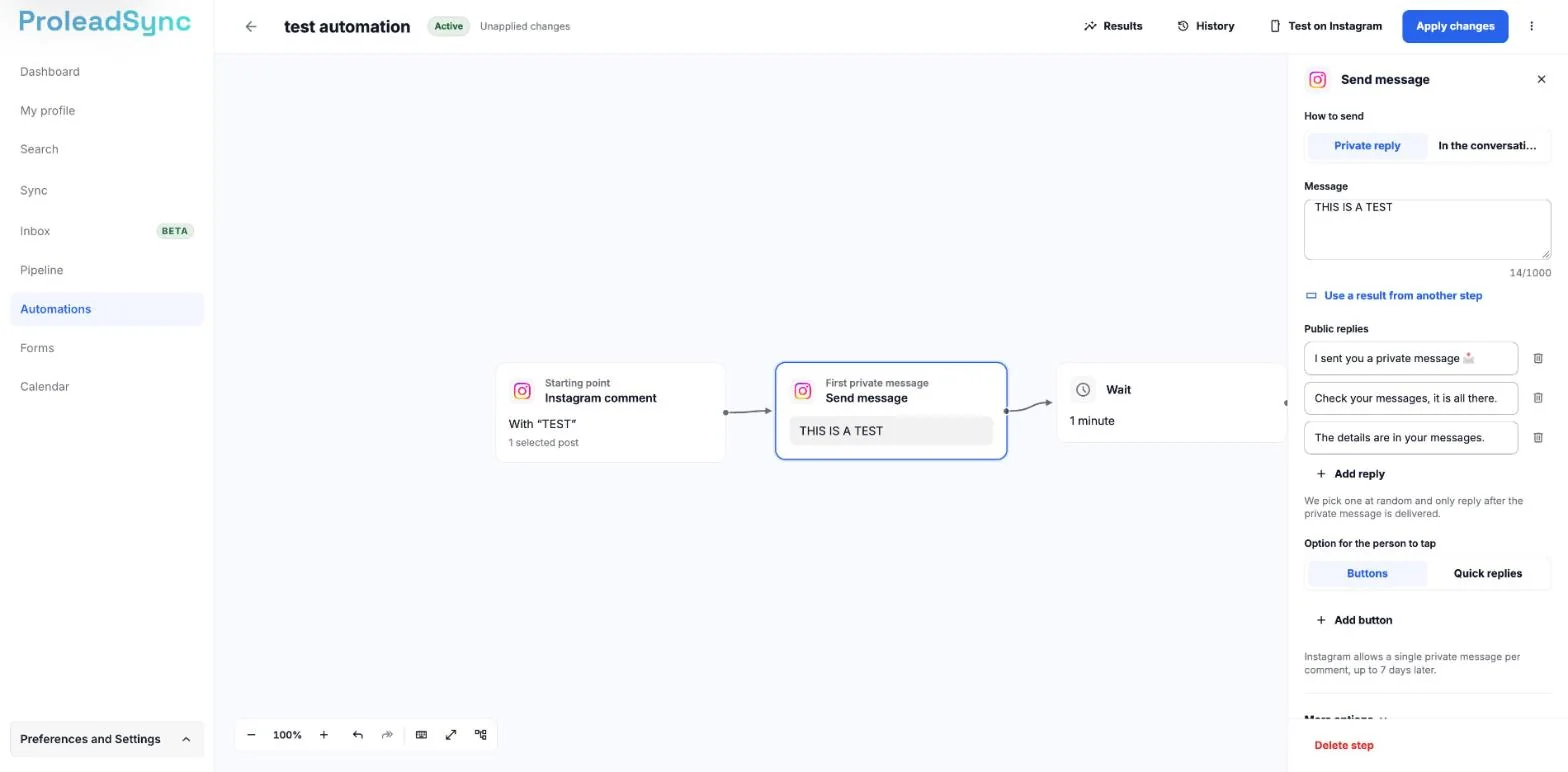
On the canvas, the step shows as First private message. - 3
Choose the option to tap
Under Option for the person to tap, choose Buttons or Quick replies. In the private reply, add 1 button or 1 quick reply, with text of up to 20 characters. The step gets a path named after the option. With the first option that continues the automation, the editor also creates the When they tap an option that is no longer active step, connected to the Option no longer active path of the starting point.
- 4
Add the next message
Select the + on the option path and choose Send message. Under How to send, check In the conversation and write the message. The new message is connected to the tap on the option and shows When they tap "…", with the option text. In automations created with Message people who comment, this message already exists.
- 5
Add buttons, quick replies or a file
In an In the conversation message, add up to 3 buttons or up to 13 quick replies. For each button, choose Continues the automation or Opens a link, with an https address. In Image or PDF, upload a PNG or JPEG image up to 8 MB or a PDF up to 25 MB. Each button or quick reply that continues the automation gets its own path. The file is sent before the text.
- 6
Review the reply to an inactive option
Select the step connected to the Option no longer active path and adjust the message. On the canvas, it is called When they tap an option that is no longer active. People who tap an option that was already used, belongs to an earlier message or is more than 7 days old get this message, at most once per run. Tapping the same button again never repeats the step.
- 7
Save and activate
The editor saves your changes automatically. Select Activate, or Apply changes if the automation was already active. The automation is active. If an option that continues the automation has no next step, the list of things to fix names it and the editor does not let you activate.
If something does not work as expected
You see that a button or quick reply has no next step.
Connect that option path to a step before activating.
You see "A message for taps on buttons that are no longer active is missing".
Connect the Option no longer active path of the starting point to a Send message step.
You see "This message can only be sent after the person taps a button that continues the automation".
Place the In the conversation message on the path of a button or quick reply that continues the automation.
I cannot find Image or PDF in the private reply.
The private reply only accepts text. Add the file to an In the conversation message.
The file does not upload.
Check that it is a PNG or JPEG image up to 8 MB or a PDF up to 25 MB. If Instagram refuses the file, try another image or PDF.
You see "Available on desktop only".
Open the automation editor on a computer.