
Before you start
- You need access to change forms. Without it, the Archive and Delete icons do not appear.
- Archiving keeps the form and its responses, with the status Archived. The form stops receiving responses through the public link and can no longer be chosen in automations.
- Deleting permanently removes the form and its responses.
Step by step
- 1
Open the forms
Select Forms in the menu. The Forms page opens, with the columns Status, Updated, Submissions and Actions.
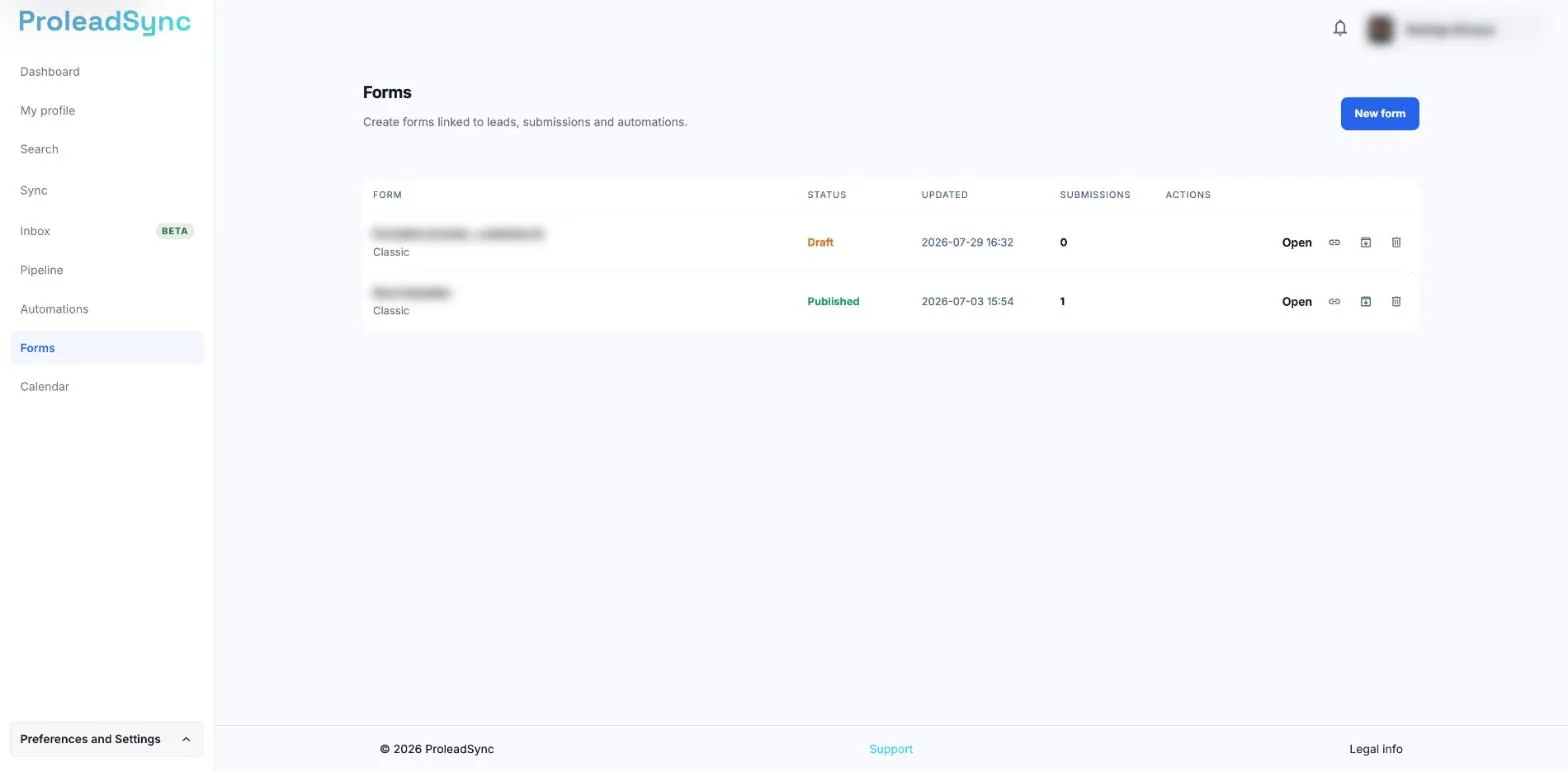
On each row, the icons on the right copy the link, archive and delete. - 2
Find the form
Look for the form in the list and check its name and Status: Draft, Published or Archived. You know which form it is before you choose an action.
- 3
Archive the form
On the form’s row, select the Archive icon, the box with an arrow, next to the link icon. In the Archive this form? window, select Archive. You see Form archived. and the Status changes to Archived.
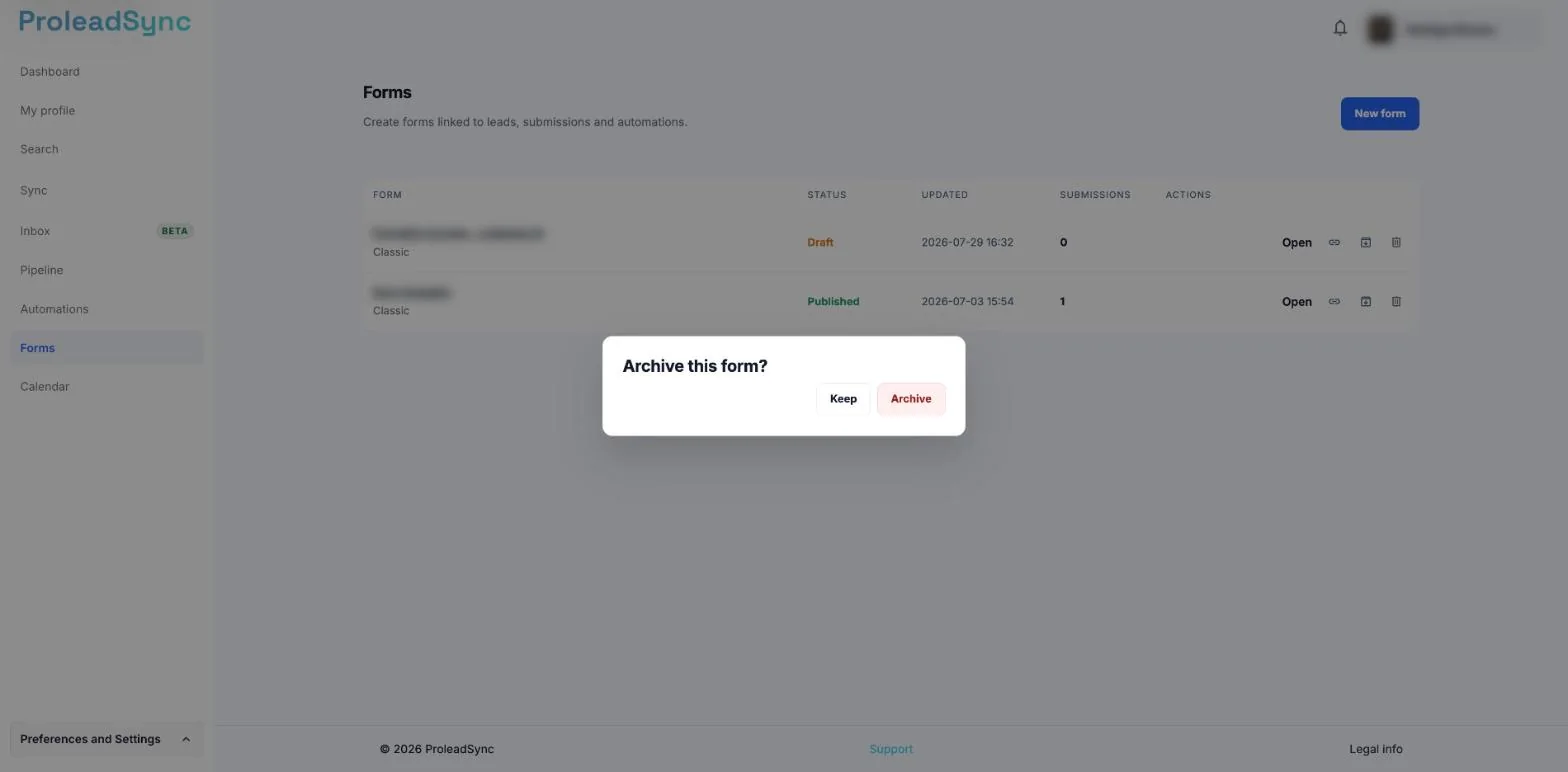
The confirmation window has the buttons Keep and Archive. - 4
Delete the form, if you no longer need it
Select the Delete icon, the trash can at the end of the row. In the Delete this form? window, read the warning that its responses will be deleted too and select Delete. You see Form deleted. and the row disappears from the list.
If something does not work as expected
The Archive and Delete icons do not appear.
Only people with access to change forms see them. Ask someone with that access to do it.
I archived a form by mistake.
Select Open on the form’s row and then Publish. The form goes back to Published.
The archived form is still in the list.
An archived form stays in the list with the Status Archived. To remove it from the list, delete it.
I want to keep the responses.
Archive instead of deleting. Deleting also removes the form’s responses.