
Before you start
- The test is available on saved automations that start with an Instagram comment, with your Instagram account connected. Without Instagram connected, Test on Instagram is disabled and shows "Connect Instagram to test.".
- You need another Instagram account. Testing with the connected account itself is not possible.
- You need to be able to edit the automation. On an active automation, select Edit first.
- The automation editor only opens on a computer.
- Have the other account ready before you start: the code is valid for 5 minutes and the test ends after 5 minutes without activity.
- Each account can run up to 10 tests per hour and has one active test at a time.
Step by step
- 1
Open the test
In the editor, select Test on Instagram. The Test on Instagram panel opens, with what the test does and does not do.
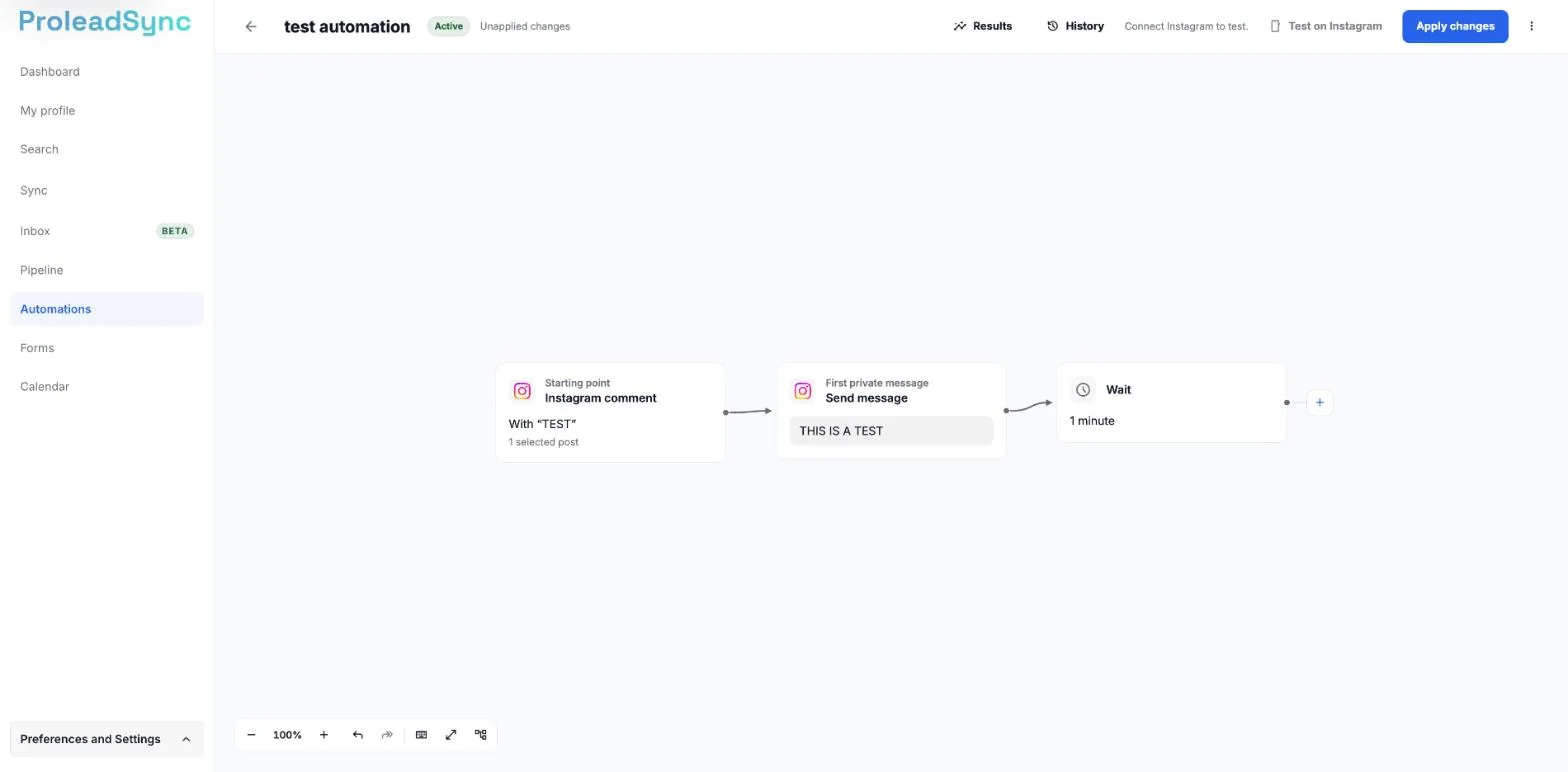
Without Instagram connected, Test on Instagram is disabled. - 2
Generate the code
Select Generate code. The editor saves the automation and shows a 6-digit code and a link. The code is valid for 5 minutes and the panel shows Valid until, with the time.
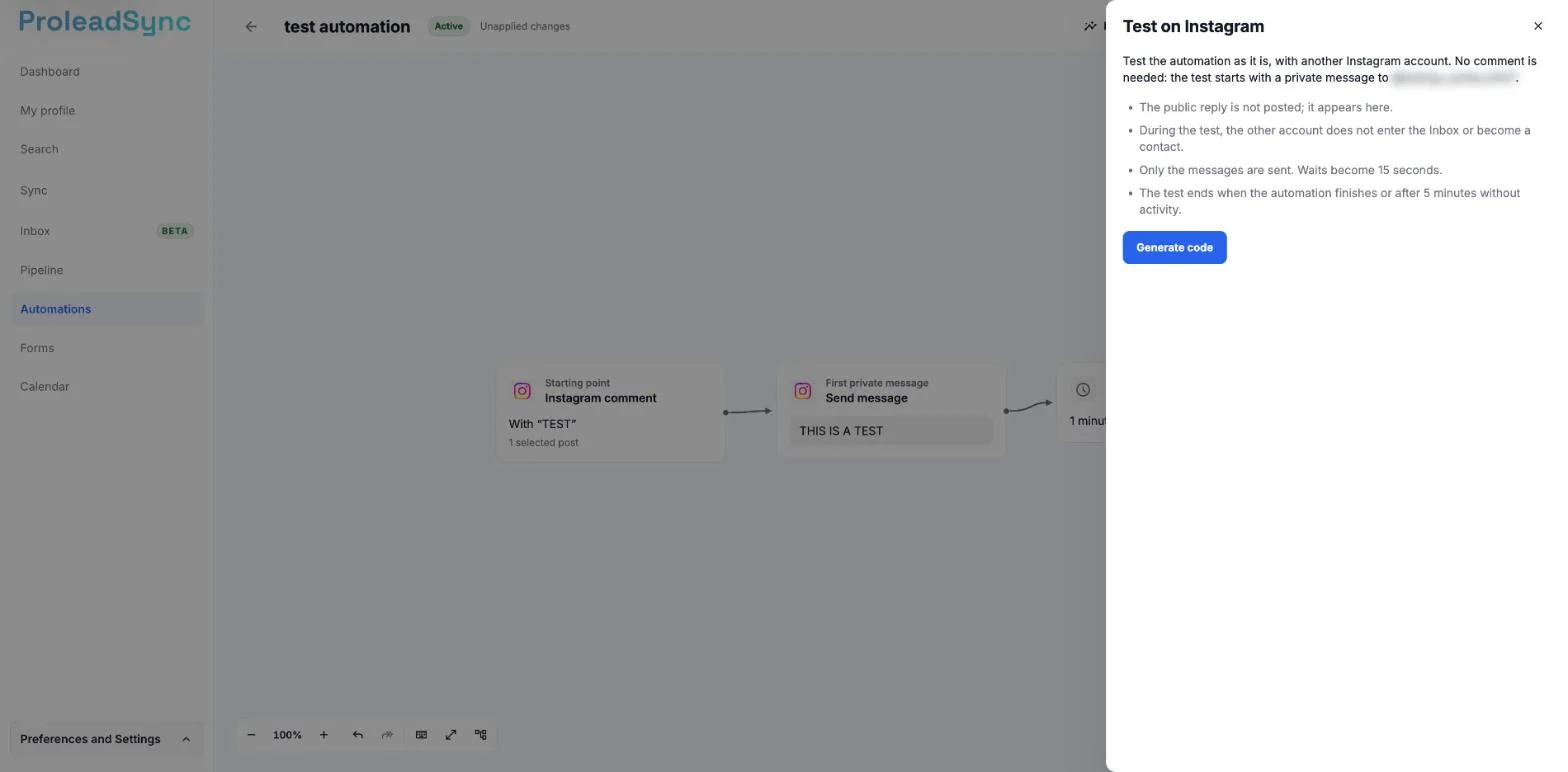
The test ends when the automation finishes or after 5 minutes without activity. - 3
Send the code from the other account
Open Instagram on the other account and send the code in a private message to the connected account. Or copy the link and open it on that account, in the Instagram app on your phone. The panel says the other account sent the code and the test started as if it had commented on the post.
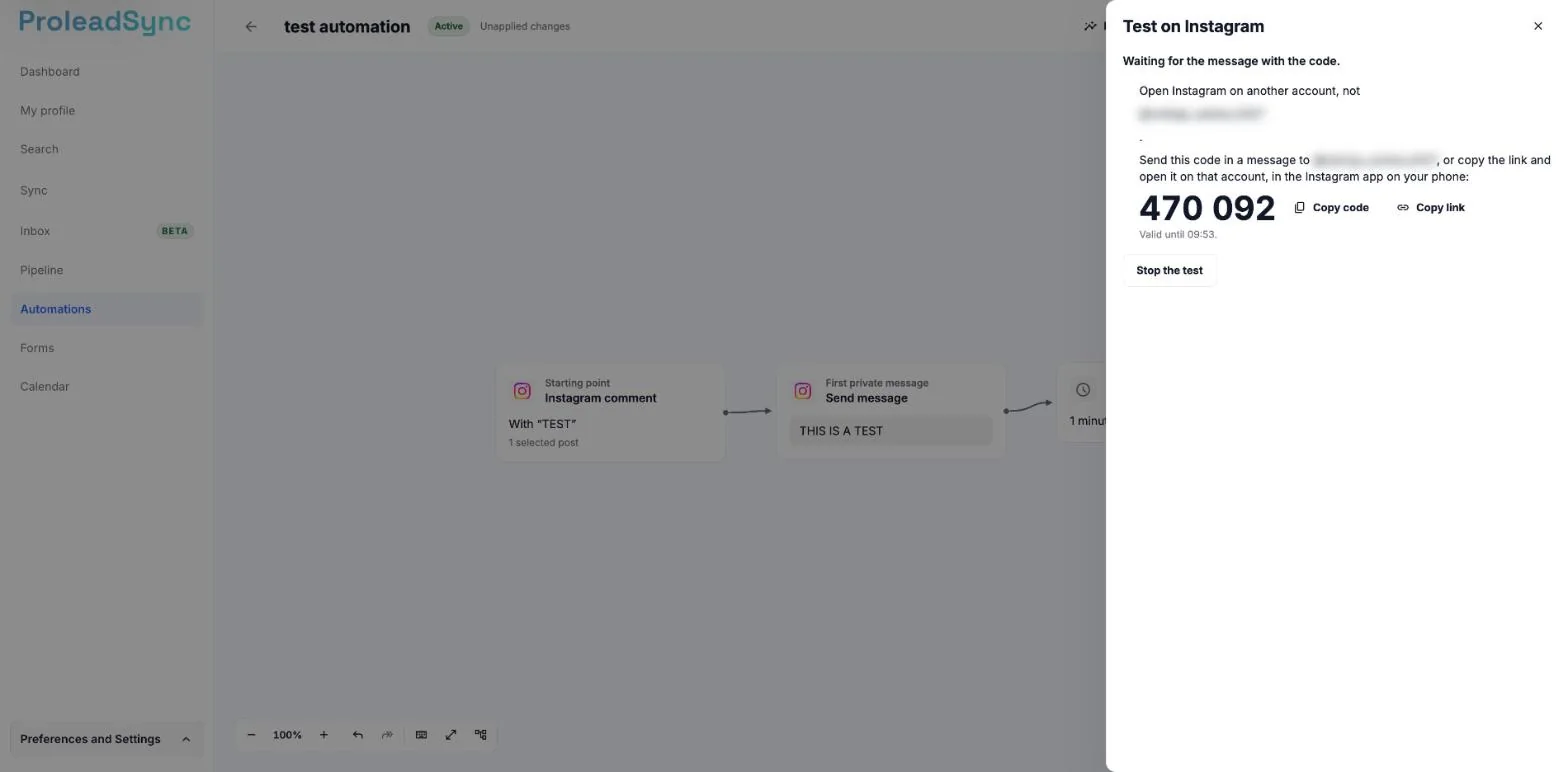
Send the code in a private message from another account. - 4
Follow the test
Follow the test on the other account and in the panel. You do not need to comment on any post. The public reply is not posted: the panel shows the text that would be posted. The first message reaches the other account as a private message, and the panel shows each step as it happens.
- 5
Tap the options
If the message has buttons or quick replies, tap an option on the other account. The test continues along that option path. Follows your account? uses Instagram's answer for the other account, conditions continue through Yes or No, and attachments are sent.
- 6
Let the test finish
Let the automation run to the end. The test ends on its own and is deleted. When the automation reaches the end, the panel shows Test finished. If 5 minutes go by without any message, tap or step, it shows The test ended because there was no activity. In both cases, Test again appears so you can start another test.
If something does not work as expected
I cannot see Test on Instagram.
The button only appears on a saved automation that starts with an Instagram comment, when you can edit it. On an active automation, select Edit.
Test on Instagram is disabled and shows "Connect Instagram to test.".
Open Settings and, under Channels, select Instagram. Connect your account and go back to the editor.
You see "Some steps are incomplete. Fix them before testing.".
Fix the steps listed under the top of the editor and select Generate code again.
You see "You have run 10 tests in the last hour. Try again shortly.".
Each account can run up to 10 tests per hour. Wait a little and try again.
When you generate the code, you see "Connect Instagram to test.".
Your Instagram account is no longer connected. Open Settings and, under Channels, select Instagram. Connect your account again, go back to the editor and select Test on Instagram.
I sent the code and the test did not start.
Check that you sent the code from another account, not the connected one, and within the 5 minutes. If the panel shows The code has expired., select Generate code and send the new code.
You see "The test ended because there was no activity.".
5 minutes went by without any message, tap or step, and the test was deleted. Select Test again and reply or tap the options on the other account before 5 minutes go by.
You see "This code can no longer be shown. Generate a new one to test.".
The code is only shown when it is generated. Select Test again.
A step shows as not sent.
The panel gives the reason, for example Instagram refused the message or the other account cannot receive messages. If the test ends on that step, the reason appears under Test finished. If the Instagram connection must be renewed, update it in Settings > Channels > Instagram.
The test does not appear in Results or in the Inbox.
The test does not count towards Results or plan limits. During the test, the other account does not enter the Inbox or become a contact. Once the test ends, messages from that account enter the Inbox like any others.