
Before you start
- Your account needs access to Instagram comment automations. Without it, Create automation opens the editor directly.
- You need full access to Automations and a plan that includes automations. At your plan limit of active automations, you can save the automation as a draft, but you cannot activate it.
- Your professional Instagram account must be connected, with access to comments authorised. If anything is missing, the assistant asks for it before the first step.
Step by step
- 1
Open the assistant
Open Automations, select Create automation and choose Message people who comment. The assistant opens with five steps: Posts, Comments, Public reply, Private message and Review.
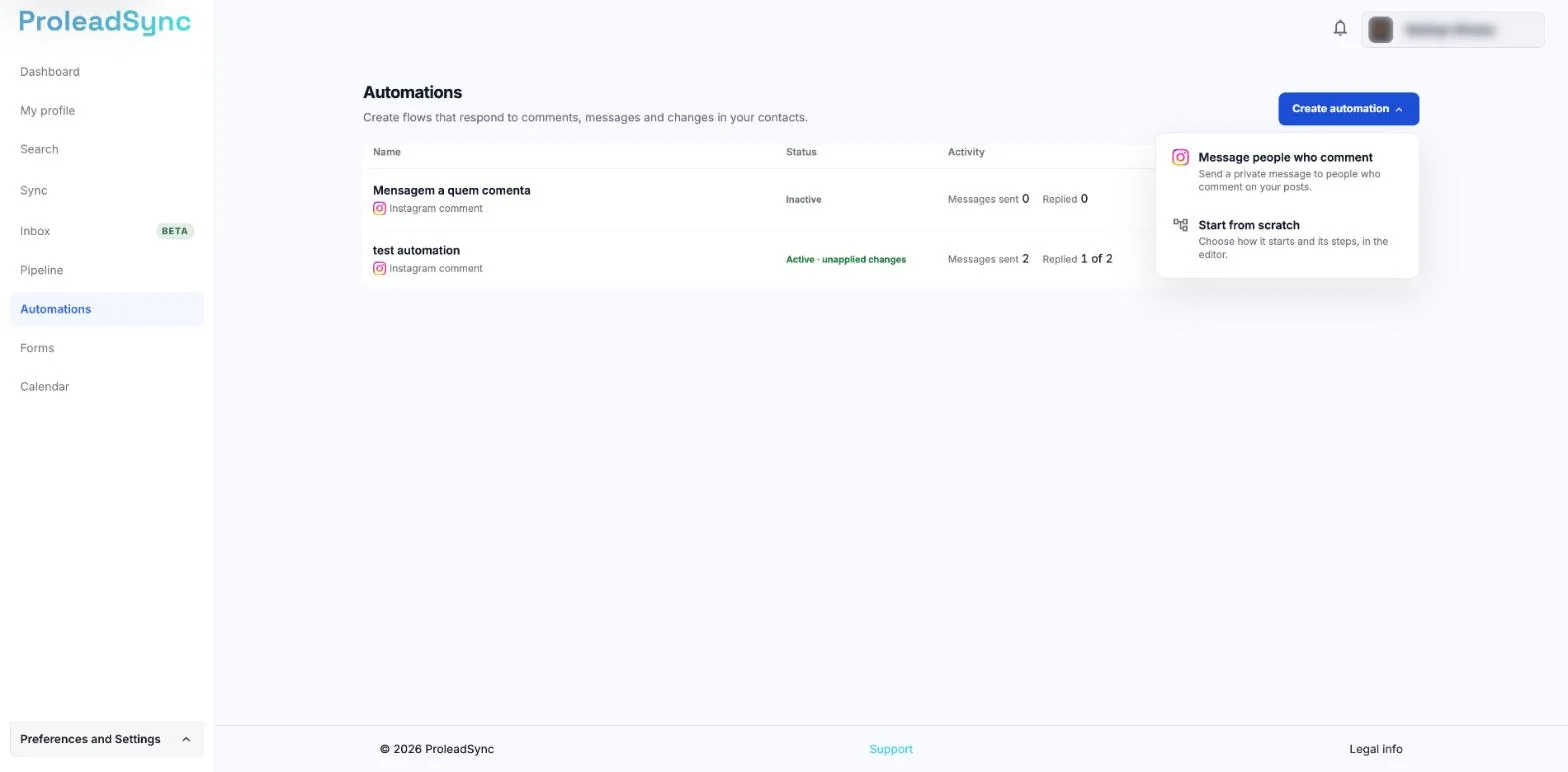
Choose Message people who comment to open the assistant. - 2
Choose the posts
Under Which posts do you want to follow?, choose All, Choose or Next. With Choose, tick the posts; if a recent post is missing, select Refresh posts. With Next, fill in From with the day and time you will post. Select Continue. You move on to Comments. With Choose, you can only continue after ticking at least one post; with Next, after entering the day and time.
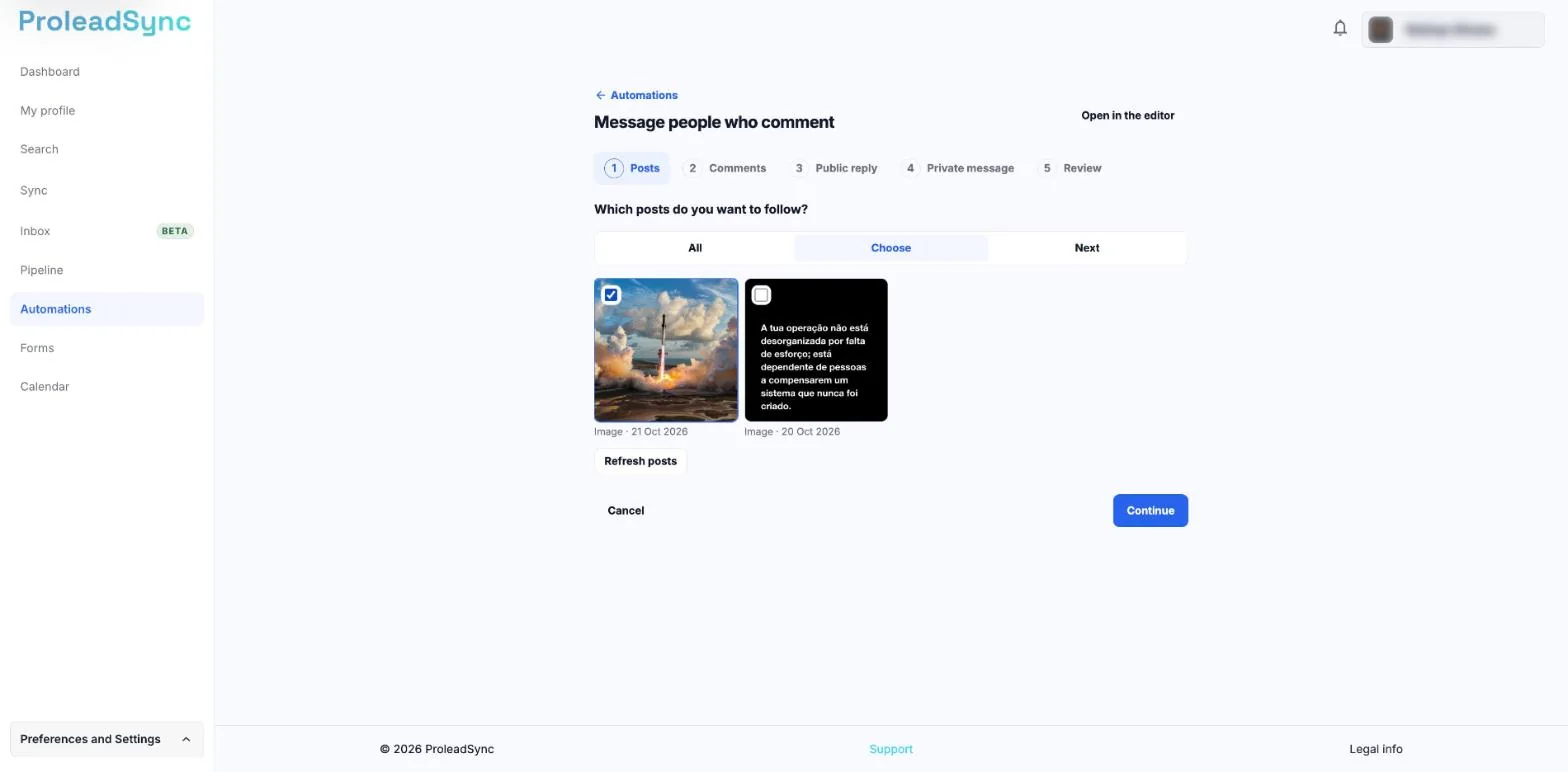
With Choose, tick the posts the automation follows. - 3
Choose which comments trigger the automation
Choose With words or Any comment. In Words, type each word and press Enter. In Ignore comments with these words, add the words to leave out. Select Continue. Any one of the words is enough, as a whole word. Case and accents are ignored, and your own comments never count.
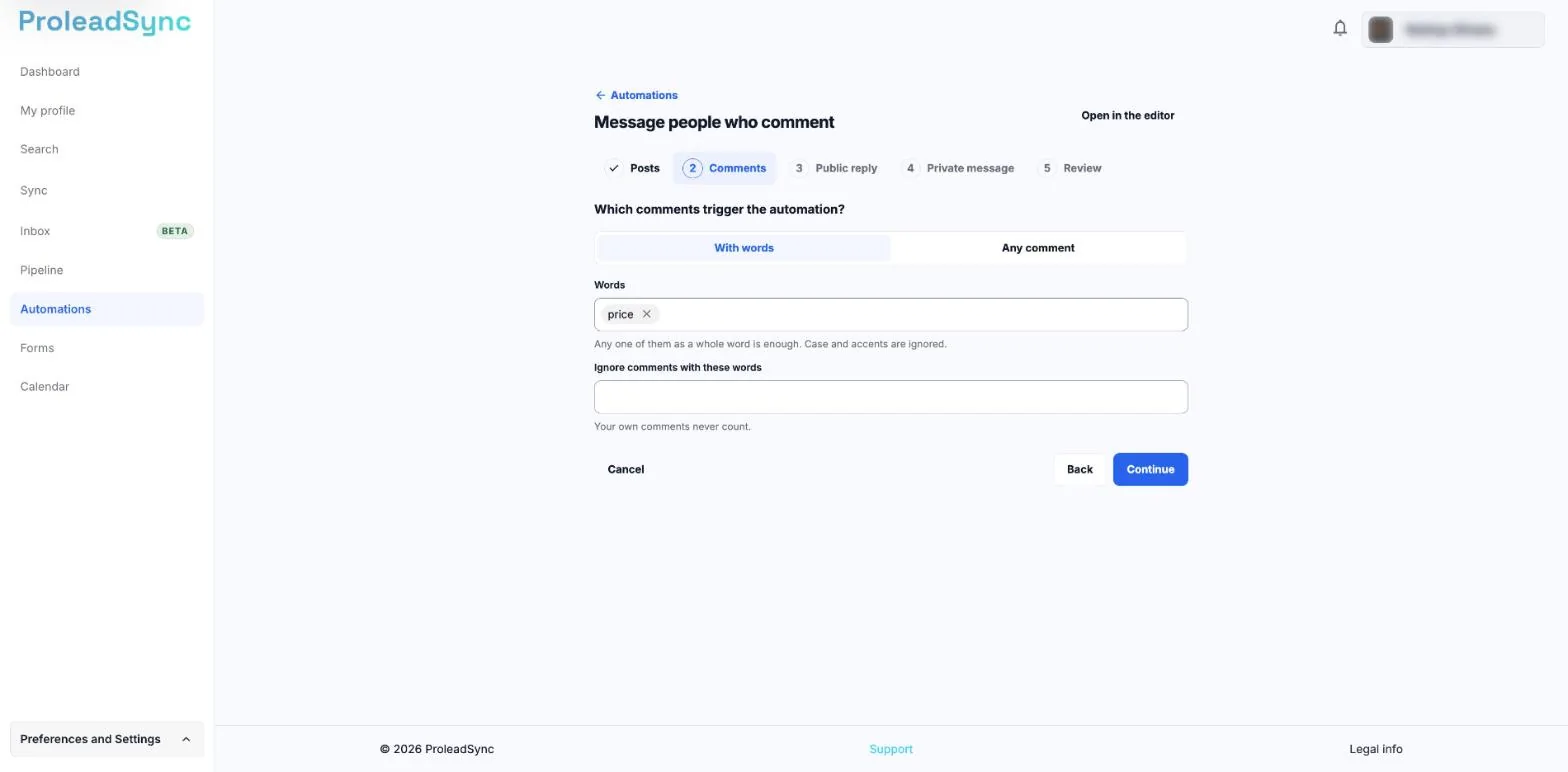
Each word becomes a tag after you press Enter. - 4
Set up the public reply
Keep Also reply publicly on if you want to reply in the comment itself. Under Public replies, review the suggestions and edit them. With Add reply, you can have up to 5. Select Continue. For each comment, one reply is picked at random. The public reply is only posted after the private message is delivered, and only on top-level comments.
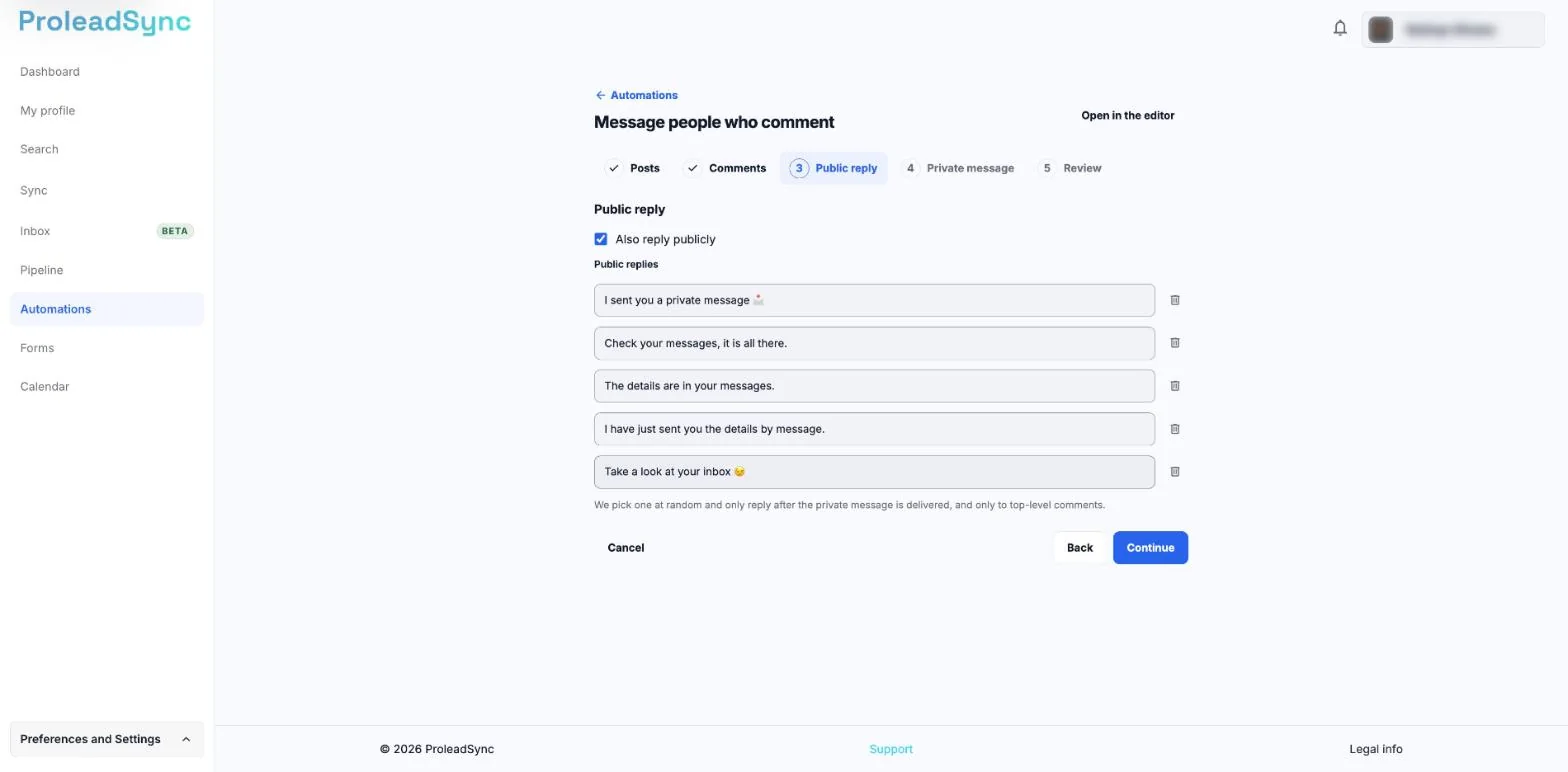
One of the public replies is picked at random for each comment. - 5
Write the private message
Write the message the person receives in their Instagram messages. Under Option for the person to tap, leave No option or choose Button or Quick reply. With an option, fill in Option text, up to 20 characters, Message when they tap and Message when the option is no longer active. Select Continue. The counter under the message shows the characters used and the maximum: 1000 with No option or Quick reply, and 640 with Button, for example 67/640. When the person replies, the conversation moves to the Inbox and the person becomes a contact.
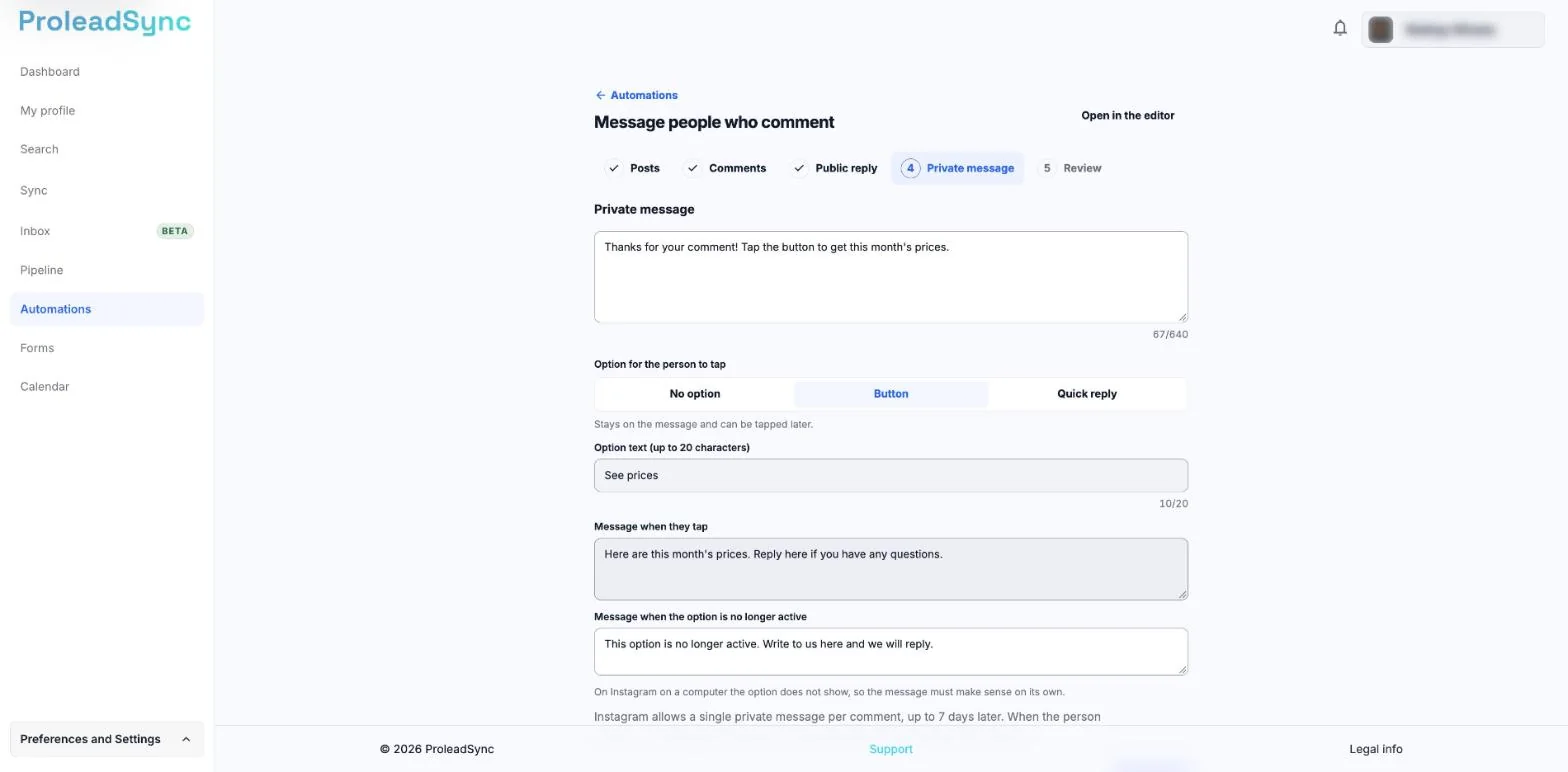
The counters show the characters used and the maximum for each field. - 6
Review your choices
Under Review and activate, enter the Automation name. Check each section and select Change to go back to the step you want to edit. Each section shows what you chose, and the private message appears as it would in a conversation. If something is missing, the top shows how many steps are left to complete, with a link to each one.
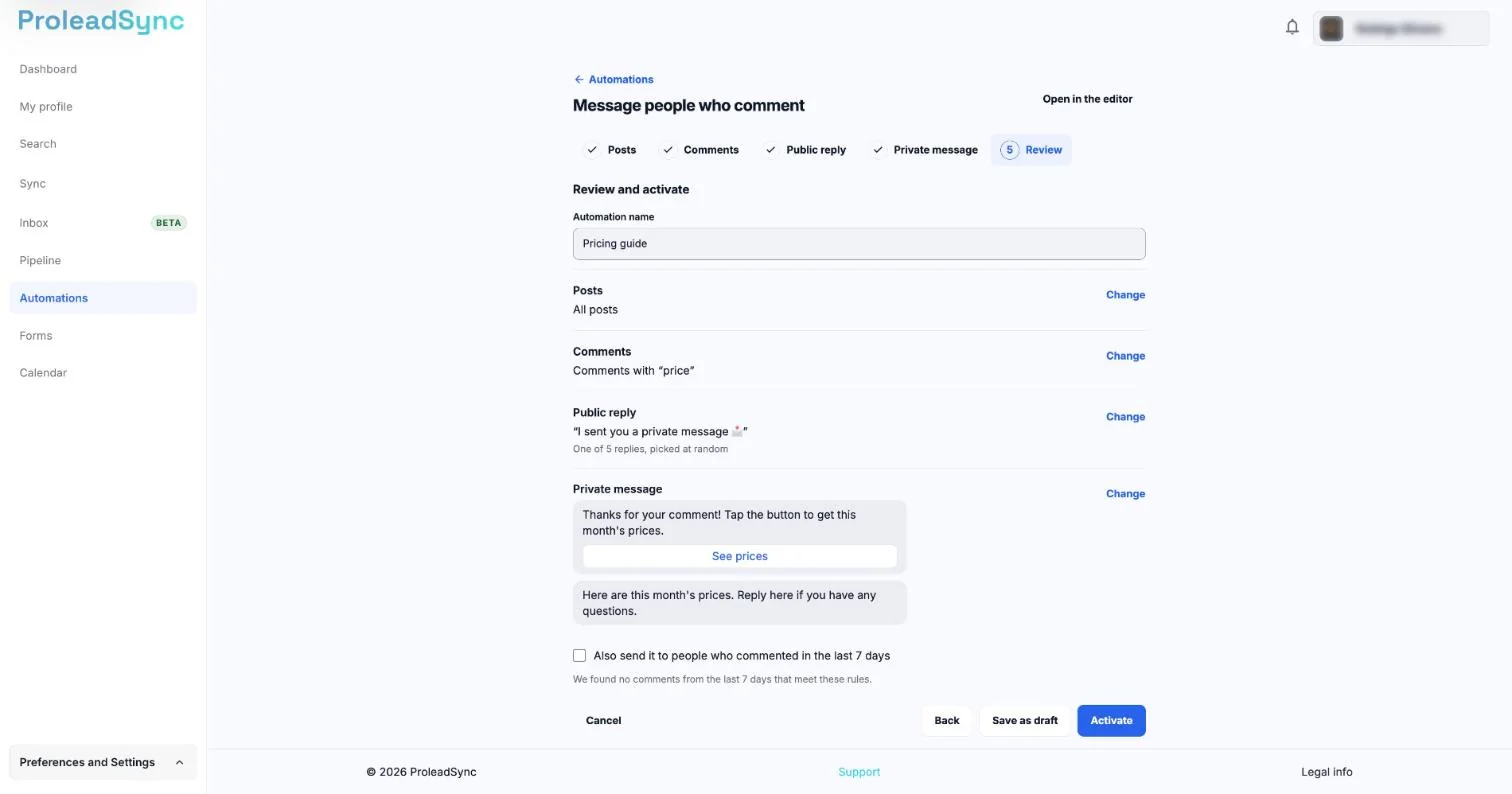
The private message appears as the person will see it, with the button and the next message. - 7
Activate the automation
If you want, tick Also send it to people who commented in the last 7 days. Select Activate, or Save as draft to activate it later. You return to the Automations list with Automation activated or Draft saved.
If something does not work as expected
You see "This account does not have access to Instagram comment automations".
Your account does not have this feature yet. Select Start from scratch to build an automation in the editor.
You see "You've reached your plan's limit. The automation was saved as a draft; …".
You already have the maximum number of active automations your plan allows. The automation was saved as a draft. To activate it, stop another automation in the Automations list or select View plans.
You see "Your plan does not include automations".
Your plan does not include automations. Select View plans.
You see "Enter the day and time you will post.".
With Next, fill in From with the day and time you will post.
You see "The automation could not be activated".
It was saved as a draft. Review the steps left to complete and select Activate again.
The automation is active, but the message to people who had already commented could not be requested.
New comments get the message as usual. Select Done to return to the list.
You see "Leave the assistant?".
You selected Cancel after filling in some answers. Leave discards them; Keep editing keeps you in the assistant.
Someone commented and did not get the message.
In the Automations list, select Results on that automation and check Messages that were not sent. The reason is shown next to each one, for example a comment older than 7 days.
You got a notice that another app is answering on Instagram.
While another app is the default for your Instagram conversations, messages are not sent. Set ProleadSync as the default app.