
Before you start
- Your account needs access to Instagram comment automations, with your professional account connected and access to comments authorised.
- You need to know the day and time you will post. ProleadSync only looks for the post in the 24 hours after that time.
- Only posts and reels count. Stories do not.
- Posts scheduled in the Instagram app or in Meta Business Suite cannot be chosen before they go out, because Instagram does not make them available.
Step by step
- 1
Choose Next
In the Message people who comment assistant, under Which posts do you want to follow?, choose Next. In the editor, select the Instagram comment starting point and, under Which posts?, choose Next. The From field appears, empty, with the help text Say when you will post. The automation links to the first post or reel from that time.
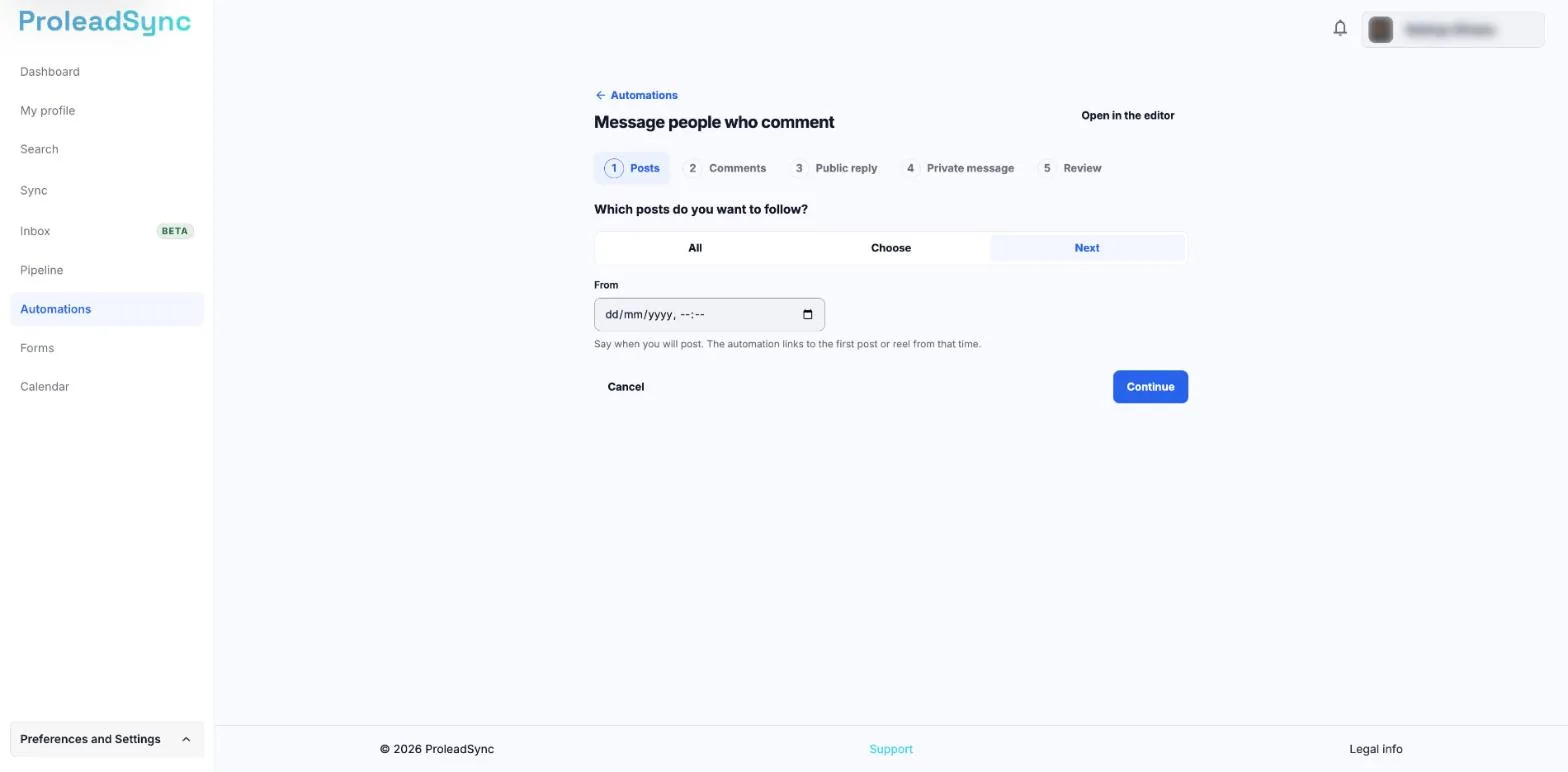
With Next, the From field appears, empty. - 2
Enter when you will post
In From, choose the day and time you will post. The field is required: without it, you cannot move on in the assistant or activate the automation. The summary shows The next post from, with the date you chose.
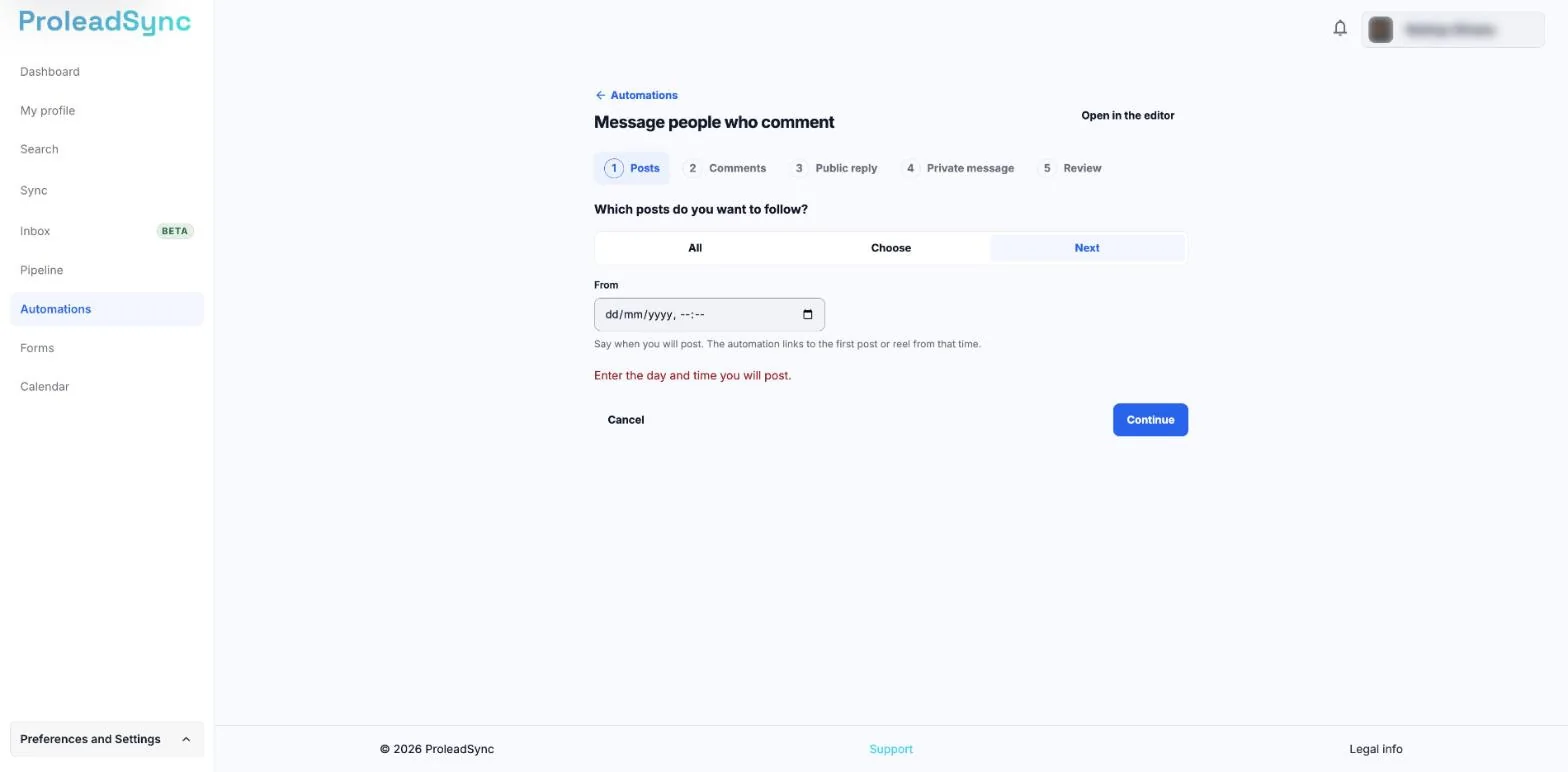
Without the day and time, the assistant does not move on. - 3
Activate the automation
Finish the other steps and select Activate before you publish. The automation is active. Until the time you entered, it does not look for the post or reply to any comment. From that time, it looks for the first post or reel published after activation, for up to 24 hours.
- 4
Publish on Instagram
Publish the post or reel on Instagram within 24 hours of the time you entered. When ProleadSync finds the post, it links it to the automation, lets you know in the app notifications and also replies to the comments already on it, within the 7 days Instagram allows.
- 5
Check the linked post
Open the automation in the editor and select the Instagram comment starting point. Linked post appears, with the type and date of the post. To choose another one, select Change.
If something does not work as expected
The automation did not reply to comments made before you published.
While it waits for the post, the automation does not reply to any comment. Once the post is linked, it also replies to the comments already on it.
You published a story and nothing happened.
Stories do not count. The automation keeps waiting for a post or reel.
The linked post is not the one you wanted.
Under Linked post, select Change and choose the right post. On an active automation, then select Apply changes.
You changed the date in From.
The automation waits again for the first post from the new date.
You see "Enter the day and time you will post.".
Fill in From with the day and time you will post.
You see "That date is more than 24 hours ago. Enter when you will post.".
In From, choose a more recent date, with the day and time you will post, and activate again.
The automation became inactive, with No post found.
No post or reel appeared in the 24 hours after the time you entered. The automation stopped looking and you got a notice in the app notifications. Open the automation, select the Instagram comment starting point, choose another date in From and select Activate.
You did not get the notification.
The notification only appears if app notifications are on. Open the automation and check whether it shows Linked post or No post found.