
Before you start
- Sync is included in the PRO plan, with 150,000 Sync credits per month, and in the ULTRA plan, with 700,000 Sync credits per month. The BASIC plan does not include Sync.
- Credits belong to the account. Everyone on the team who uses Sync spends from the same total.
- Each Sync reply uses credits for the text it reads and the text it writes, including its reasoning. Text from earlier messages that Sync already has stored counts for less.
- Every plan uses the same model. A reply uses the same credits whichever AI provider is in use, and a provider change does not delete your conversations.
- To see usage in Billing, you need access to the account billing. In Sync, usage is shown to anyone who can use Sync.
Step by step
- 1
Check your credits in Sync
Open Sync and look at the line under the message box. You see how many credits you have used and the monthly total, as N of N credits used. The number updates as you use Sync.

Under the box you see the credits used and the monthly total. - 2
Open Billing
Open the Preferences and Settings menu, in the bottom-left corner, and choose Plan and billing. The Billing page opens, with your Current plan at the top.
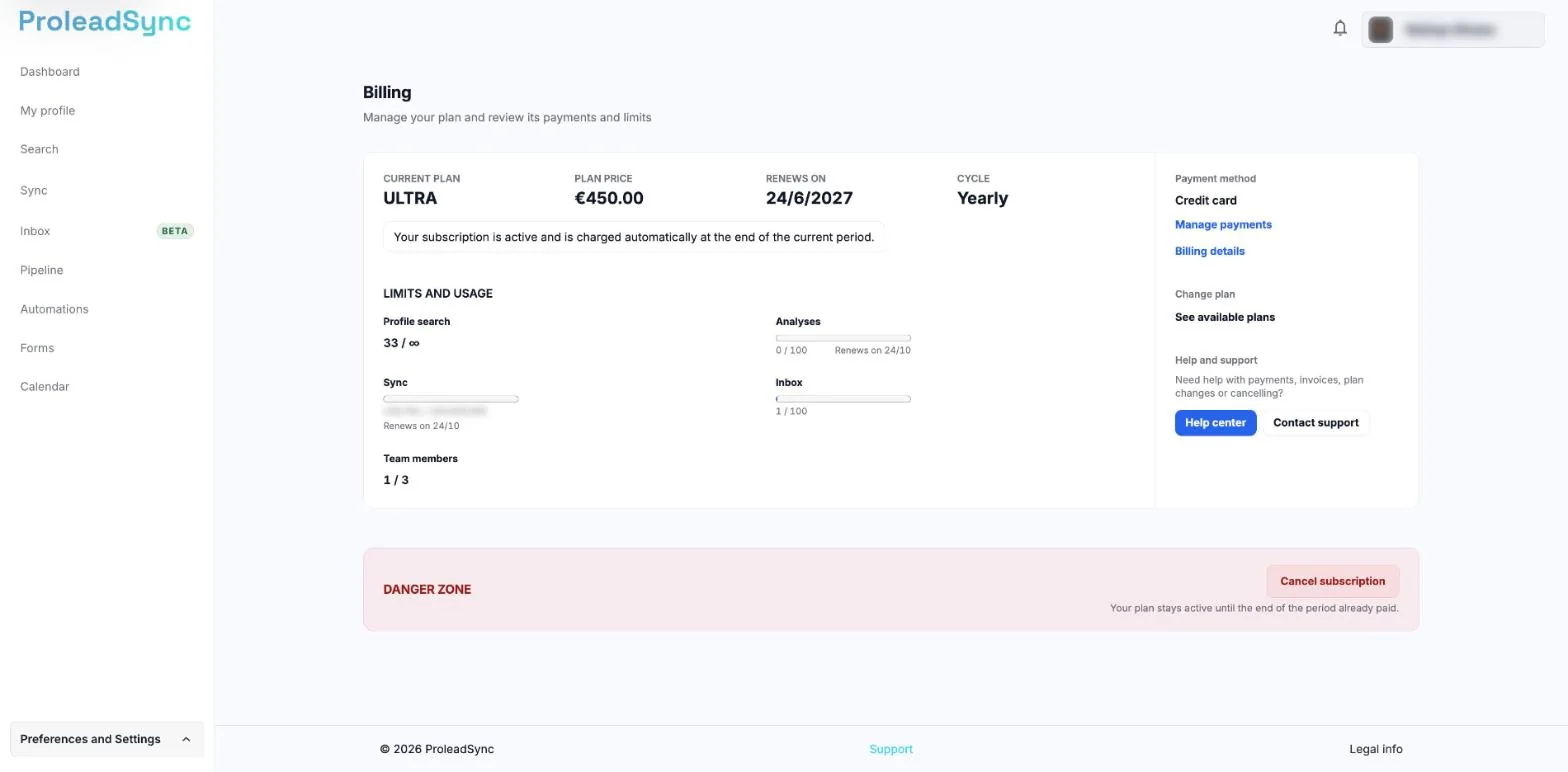
Billing opens with your Current plan at the top. - 3
Check the Sync line
Under Limits and usage, find the Sync line. The bar shows the credits used and the monthly total. Below it, Renews on shows the day and month when your credits go back to the full amount.
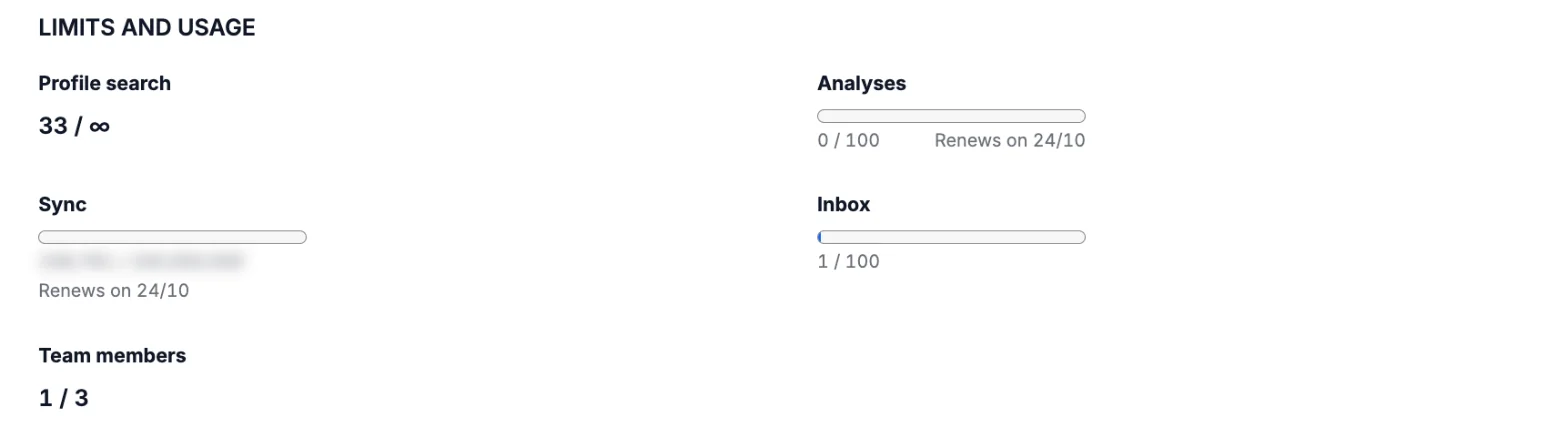
Under the Sync bar, Renews on shows the date. - 4
Choose the reasoning level
In the Sync message box, open Reasoning level and choose Auto or a lower level for simple tasks. Sync replies at that level. Because reasoning also counts as written text, a higher level can use more credits per reply.
- 5
Know what happens at the limit
When the month's credits run out, Sync shows a notice above the message box and you cannot send messages until they reset. On PRO, the notice reads "You reached Sync's monthly limit. Upgrade to continue." with View plans, which opens the plans in Billing. On ULTRA, it reads "You reached Sync's monthly limit. Usage will reset in the next cycle."
If something does not work as expected
I do not see Plan and billing in the menu.
Only people with access to the account billing see this option. Check your usage in Sync, under the message box, or ask the person who manages the account.
The Sync line says Not included in your plan.
The BASIC plan does not include Sync. In Billing, use See available plans to compare the plans with Sync. Only people who manage the account billing can change the plan.
I see "You reached Sync's monthly limit. Upgrade to continue."
You have used this month's Sync credits for your plan. Select View plans to move to ULTRA, or wait for the Renews on date in Billing.
I see "You reached Sync's monthly limit. Usage will reset in the next cycle."
You have used the 700,000 ULTRA Sync credits this month. Credits go back to the full amount on the Renews on date in Billing.
A reply used more credits than I expected.
Long replies, attachments, a lot of text to read and a high reasoning level use more. A conversation picked up again much later also uses more, because stored text no longer counts for less. For a new task, start a New conversation.
A reply failed.
A reply that fails does not count towards your usage. Try again.
Credits ran out faster than usual.
The total is shared by everyone on the team who uses Sync. Check this month's usage in Billing.