
Before you start
- Sync is not included in the BASIC plan. On the PRO and ULTRA plans, Sync has a monthly limit of Sync credits.
- The contact needs a Profile 360, which opens when the profile analysis finishes.
Step by step
- 1
Open the Profile 360
Select Pipeline in the menu and, on the contact’s card, select View details. You can also select the contact’s name under Pending tasks in the Inbox. The contact page opens, with the tabs Commercial decision, Profile, Evolution and Data.
- 2
Select Talk to Sync
At the top of the Profile 360, on the right, select Talk to Sync. Sync opens with a conversation linked to that profile. If the profile already has a conversation, Sync opens it. If not, it creates a new one.
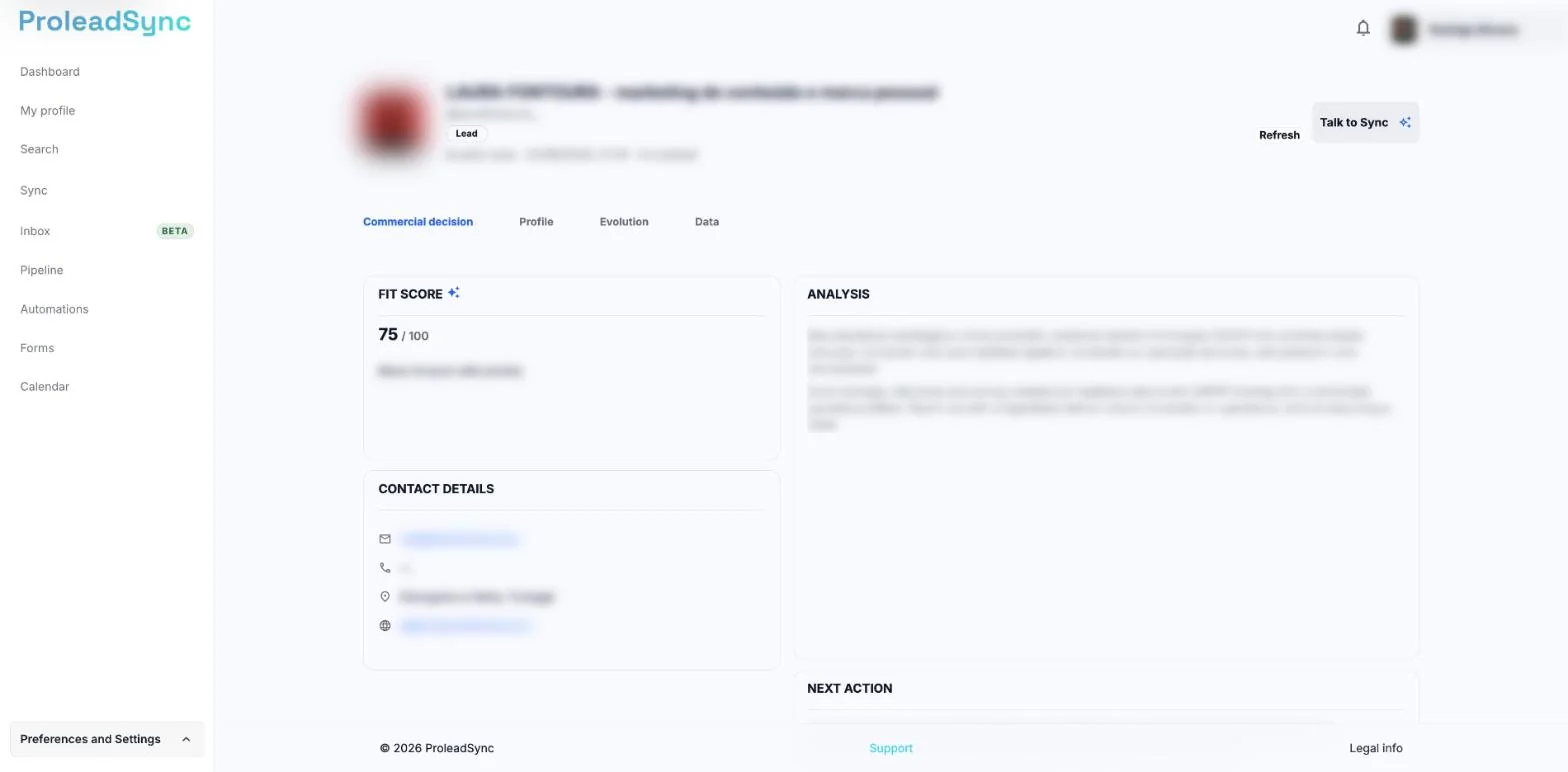
The Talk to Sync button is at the top of the Profile 360. - 3
Write your request
In the Sync message box, write what you need to know or prepare about this contact and send the message. Sync replies based on the linked profile and the saved analyses.
- 4
Review the reply before you act
Read the reply and check that it is about the right contact. When Sync prepares an action that changes information or contacts someone, review the summary before you confirm. You only go ahead with what you confirmed.
If something does not work as expected
I see Choose a plan instead of Talk to Sync.
The account does not have an active subscription or trial yet. Select Choose a plan to open Billing and pick a plan that includes Sync.
I cannot find Talk to Sync.
Check that you are on the contact page and not on the Pipeline list. In the Pipeline, select View details on the card first.
I cannot send messages in Sync.
The BASIC plan does not include Sync. On PRO and ULTRA, check whether you reached the monthly limit of Sync credits. If so, a notice appears above the message box.
The conversation opened about another contact.
Go back to the right contact’s Profile 360 and select Talk to Sync from that page.