
Before you start
- Gather the traits of the audience you want to attract: type of business, role, main need and location.
- You need access to change these settings.
- To use Generate with Sync AI, you need Instagram connected under Settings, Channels, Instagram. The first version starts from your Instagram profile.
Step by step
- 1
Open Ideal customer
Open the Preferences and Settings menu, in the bottom-left corner, and select Settings. Under Knowledge base, choose Ideal customer. You see the Ideal customer text field and the Generate with Sync AI button.
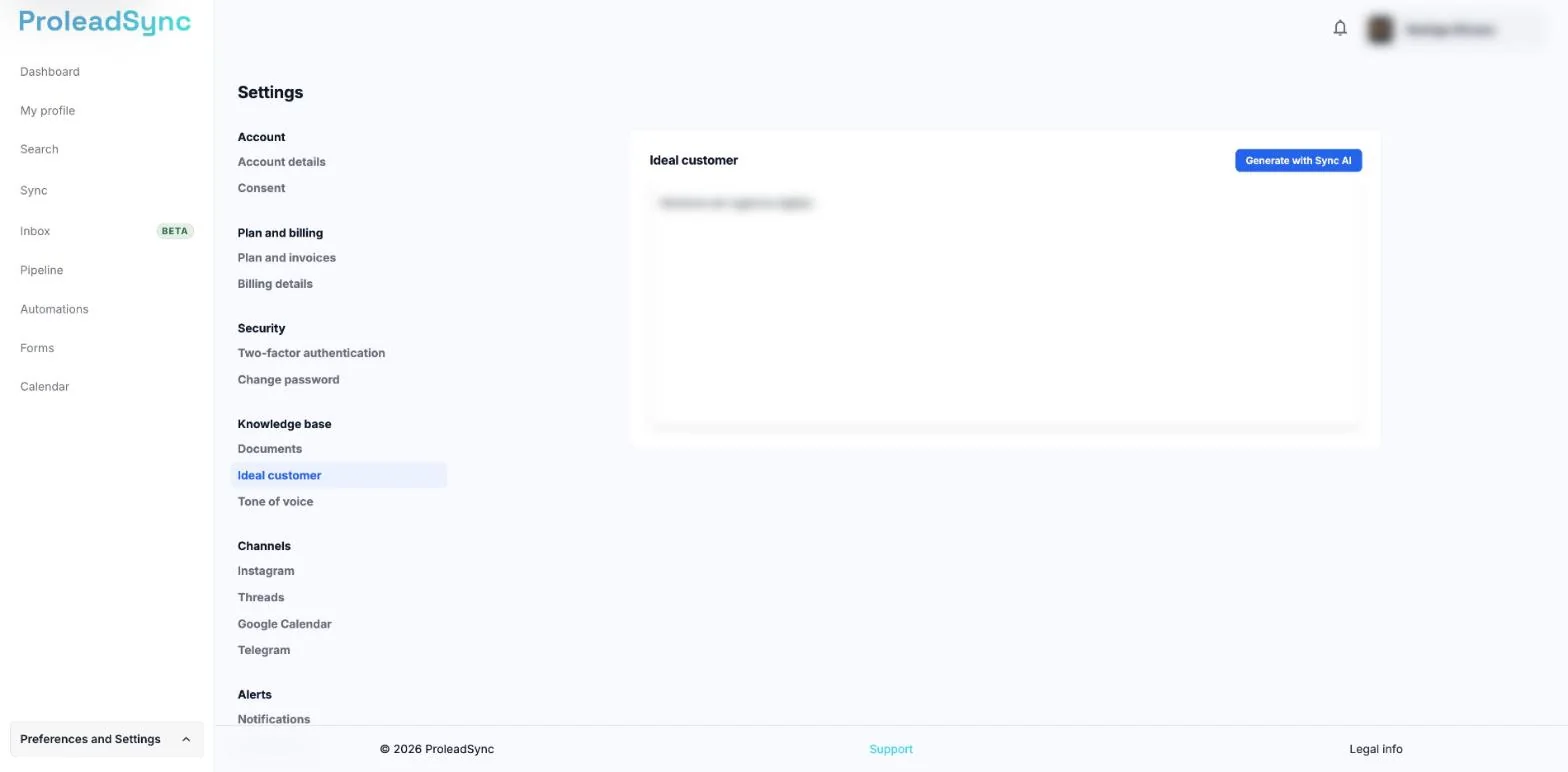
The Ideal customer field and the Generate with Sync AI button. - 2
Write the description or generate a first version
Write in the field the customer you want to attract. Or select Generate with Sync AI so Sync writes a first version from your Instagram profile. The field shows the description. The generated text is saved right away and you see Changes saved.
- 3
Review and adjust
Check that the description identifies the audience well. Add what is missing, such as the type of business, the role, the need and the location, and remove what should not count. The field accepts up to 5000 characters. The description matches the audience you want to attract.
- 4
Save
After you edit the text, select Save. The text is also saved when you leave the field. You see Changes saved. and Sync uses this description as the audience you want to attract.
If something does not work as expected
Generate with Sync AI does not work.
Check under Settings, Channels, Instagram that the account is connected. If you see “Could not generate the ideal customer.”, try again or write the description by hand.
The field and the button are inactive.
Only people with access to change these settings can edit Ideal customer. Ask whoever manages the account.
I see “Could not save.”
Refresh the page, check the text and try again. If it continues, open a request in Support.
The description is too generic.
Add the type of business, the person’s role, the main need and the location.
Earlier analyses no longer match.
Changing the Ideal customer makes earlier analyses out of date. Run the analysis again for the profiles you still need.