
Before you start
- You need at least one saved segment. To save one, set the filters, write a name under Save filters as a segment and select Save.
- A segment applies its filters to the view you have selected: Leads, Partnerships or Competitors.
Step by step
- 1
Open the Pipeline
Select Pipeline in the menu. You see the stage columns with the contact cards.
- 2
Choose the view
At the top of the page, select Filter. Under View, choose Leads, Partnerships or Competitors. The Pipeline shows the view you chose.
- 3
Open the saved segments
In the Filter menu, select More filters and scroll down to Saved segments. You see the Choose segment selector.
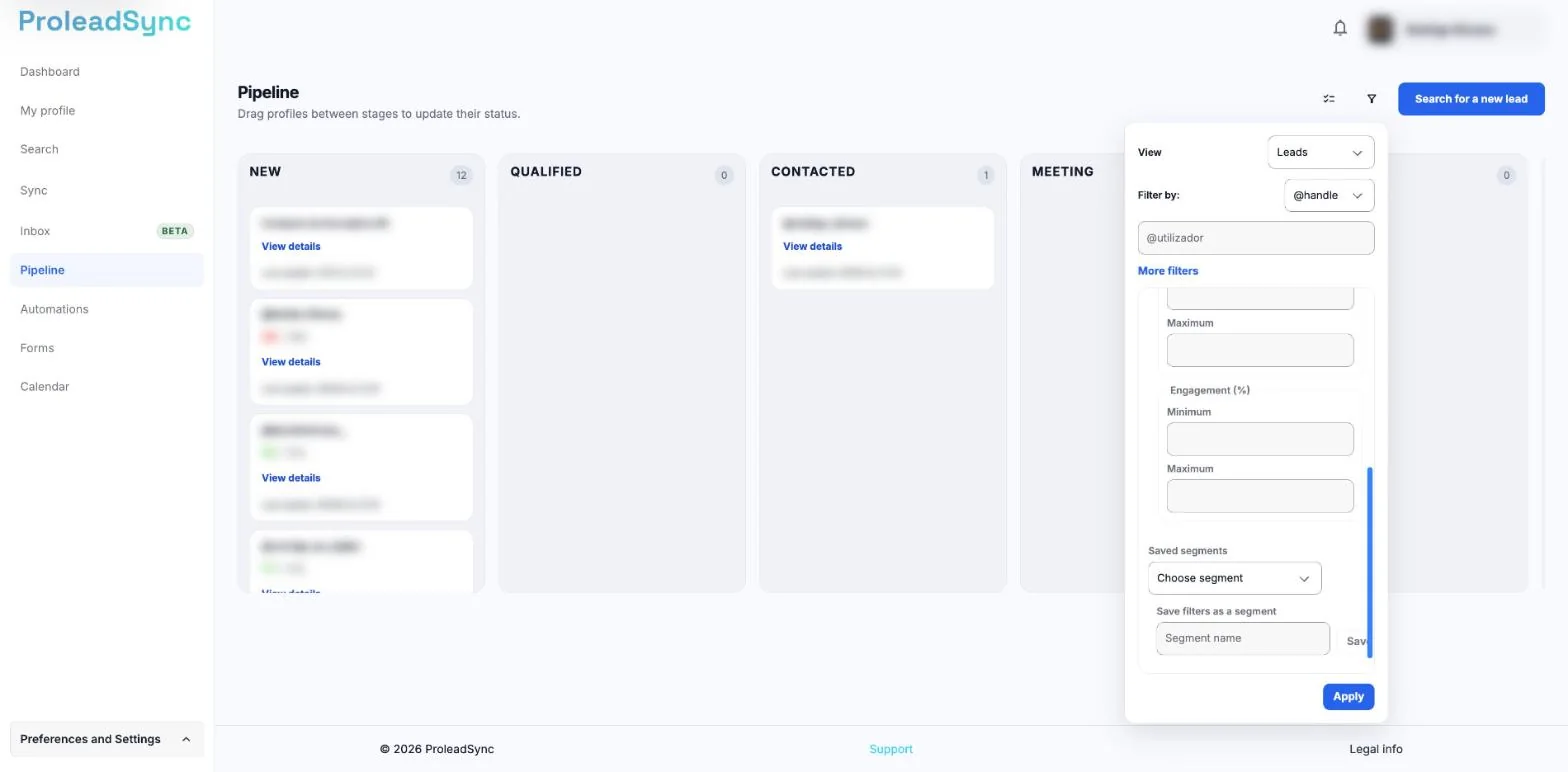
Saved segments are at the bottom of More filters. - 4
Choose the segment
Open Choose segment and select the segment you want to apply. The saved filters apply right away and the cards show only the contacts that match. The number on the filter icon shows how many filters are active.
- 5
Check the results
Select Filter to close the menu and review the cards in each stage. You have the list of contacts that match the segment.
If something does not work as expected
Choose segment is the only option.
You have not saved a segment yet. Under More filters, set at least one filter, write the name under Save filters as a segment and select Save.
No cards appear.
Check the view under View. The segment’s filters apply to the view you chose and your current contacts may not match. Choose another segment or select Clear.
I want to stop using the segment.
Open Filter and select Clear. To delete the segment, choose it under Saved segments and select Delete segment. The segment is deleted right away.
The Save button is inactive.
You can only save a segment with a name and at least one filter set.