
Step by step
- 1
Open the Pipeline
Select Pipeline in the menu and confirm that you are viewing Leads.
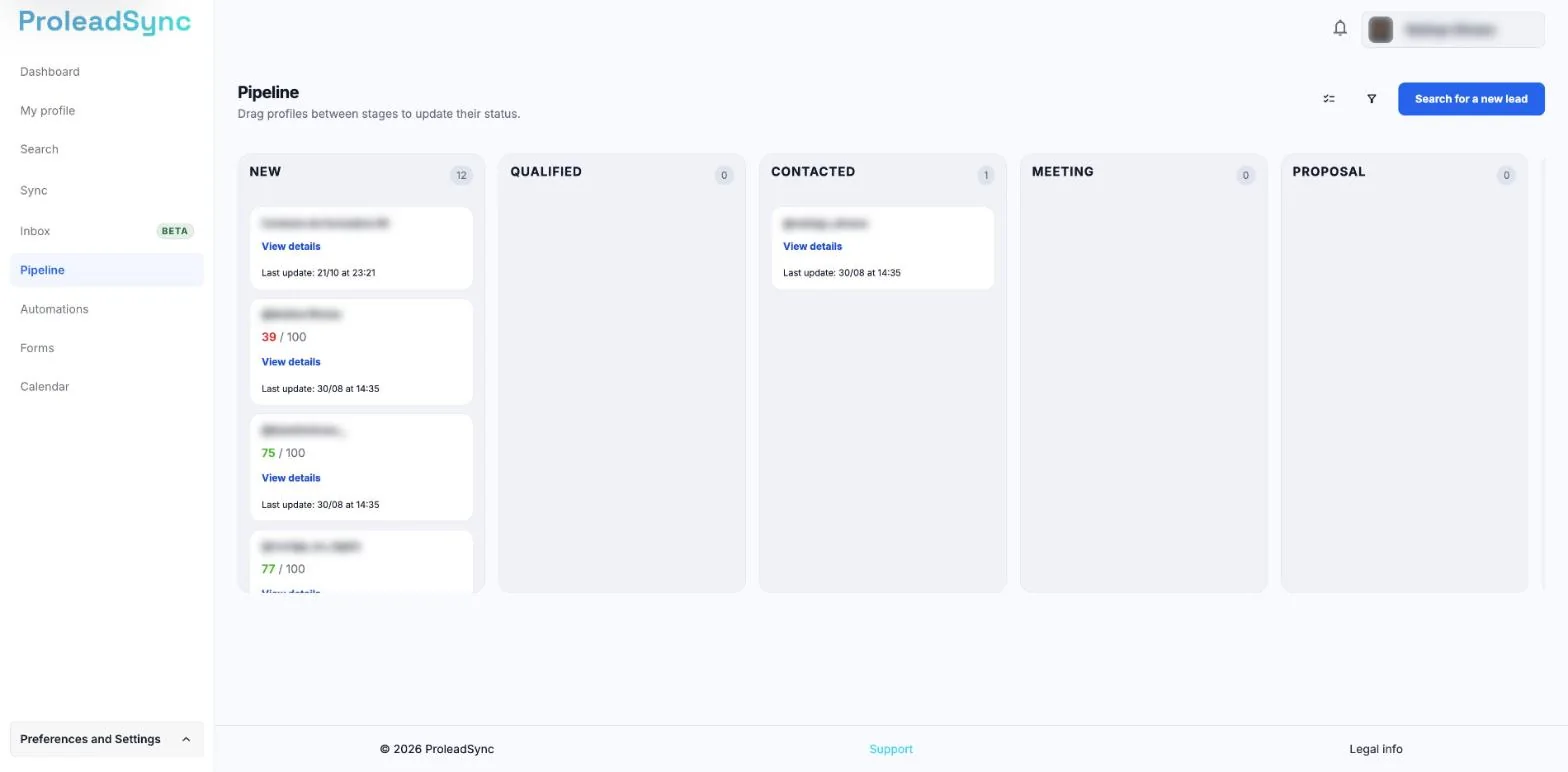
Each column is a stage of your sales follow-up. - 2
Find the lead
Search for the card by username or browse the stage where you expect it to be.
- 3
Move the card to the correct stage
Drag the card into a new column when the opportunity changes. The stage should reflect what has happened, not what you hope will happen.
- 4
Review inactive cards
Open leads without recent activity and decide whether to set an action, move the stage or close the opportunity.
If something does not work as expected
I cannot move a card.
Refresh the page and try again. On mobile, open the lead details and change the stage in its field.
The Pipeline looks empty.
Check the filter at the top, select Leads and use Refresh.