
Before you start
- Prepare a short description of what you were doing, what happened and what you expected.
- You can attach PDF, PNG, JPG or MP4 files, up to 20 MB in total.
- Check that the attachments do not show passwords, payment details or other confidential information.
Step by step
- 1
Open Support
Select Support in the footer of ProleadSync. The Support page opens, with the list of your help requests.
- 2
Start a new request
Select Contact support. If you are viewing a closed request, you can also select New request. The Create a new help request window opens.
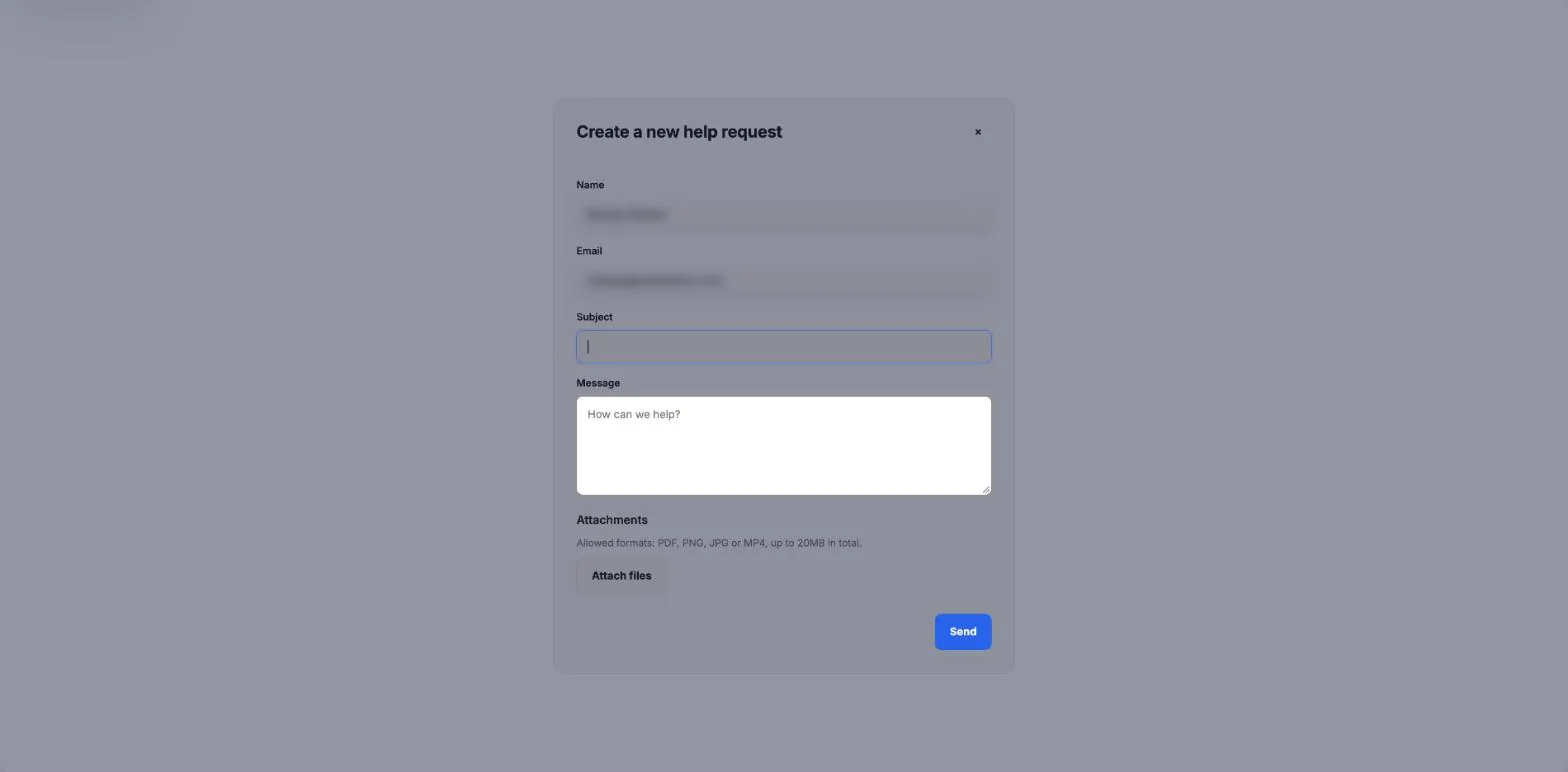
The Create a new help request window holds the subject, the message and the attachments. - 3
Check your name and email
Review the Name and Email. They are filled in from your account and you cannot edit them. The team’s reply goes to that email.
- 4
Write the subject and the message
In Subject, sum up the problem in one sentence. In Message, explain what you were doing, what happened and what you expected to happen. The team gets the information it needs to start looking into it.
- 5
Attach the files
Under Attachments, select Attach files and choose the documents, images or videos that help explain the problem. To remove a file, select the × next to its name. The files appear below the button, with the size of each one.
- 6
Send the request
Review the request and select Send. You see Help request created., the request opens on the page and you get an email with the request number and a link to follow it.
If something does not work as expected
I cannot attach a file.
If you see “Unsupported format. Use PDF, PNG, JPG or MP4.”, choose another format. If you see “The 20MB total limit was exceeded.”, remove files that are not essential.
I see “Fill in subject and message.”
Write the Subject and the Message. A field with only spaces counts as empty.
A notice says the text went over the maximum number of characters.
Shorten the text. The subject accepts up to 160 characters and the message up to 5000.
My name or email is wrong.
Both fields come from your account and cannot be edited in this request. Write in the message the email where you prefer to get the reply.
I did not get the request email.
Look in your spam folder for the subject you wrote. The request stays on the Support page, where you can read the replies and answer.
The attachment has confidential information.
Remove the file with the ×. Create a version without passwords, payment details or unnecessary personal data and attach only that one.