
Step by step
- 1
Open Alerts
Open Settings and select Alerts.
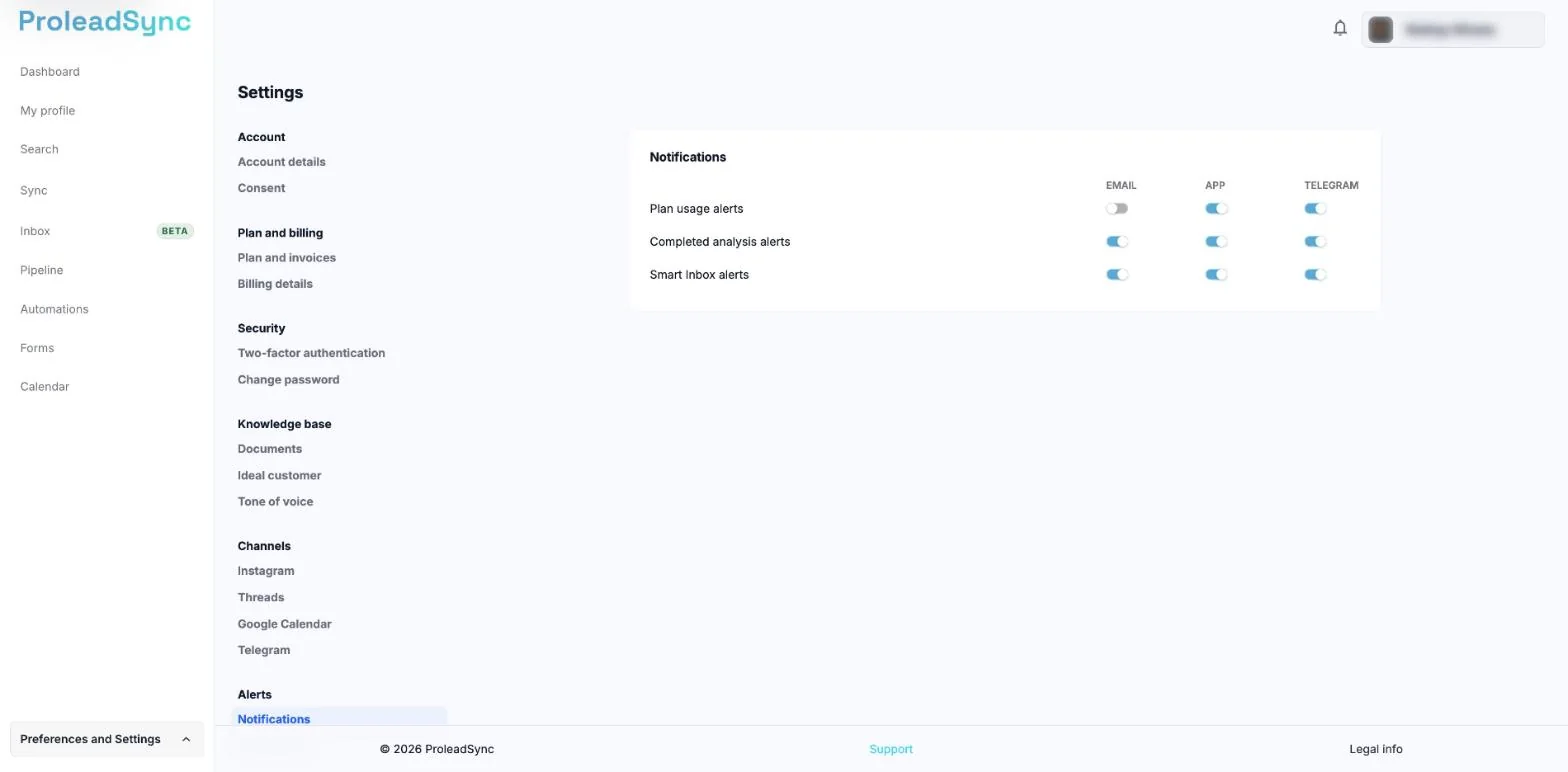
In Notifications you choose, for each alert, whether you get it by email, in the app or on Telegram. - 2
Choose the alerts
Under Notifications, you find Plan usage alerts, Completed analysis alerts and Smart Inbox alerts.
- 3
Enable only useful notices
For each alert, turn Email, App and Telegram on or off. The change is saved right away. Keep the alerts that require a decision or reply from you.
- 4
Confirm the delivery channel
Under Alerts, select Preferences and check that the Email, App and Telegram channels you want to use are on. For Telegram, first connect it in Settings > Channels > Telegram.
If something does not work as expected
I receive an alert that I disabled.
Refresh Alerts and check the alert under Notifications. The same alert may be on in another channel.
I do not receive an important notice.
Confirm that the event and channel are enabled, then check browser notification permissions.